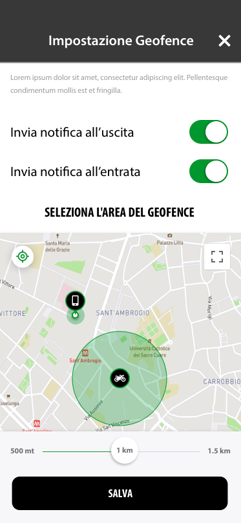
The Geofence is a virtual fence that you set manually around a chosen location. Once the Geofence is active, you receive an alert in the app when the vehicle enters and/or leaves the fence.
You can activate the Geofence directly from your account's Home screen:
- To the left of the vehicle image, tap the icon next to the word Geofence.
- You'll be taken to the Geofence settings screen. First, decide whether to receive an alert when the vehicle enters, leaves or both, by turning on the notification.
- Once you've turned on one of these options, the map will show your vehicle's last position. You'll also see a red area around the vehicle icon: this is the Geofence activation radius.
- You can change the radius by dragging the slider below the map. You can also move the activation area anywhere on the map: just scroll the map and tap the location you want.
- When you've finished setting up the Geofence or changing the previous settings, tap the Save button to confirm and activate the Geofence.
WARNING: If you can no longer see the red area you set, you have probably moved the point the Geofence was centred on without noticing. To fix this, just tap the point you want and set the starting point of the Geofence area again.